AI Clothes Changer
AI clothes changer for virtual try-on: upload a person photo, then add a clothing photo or describe the outfit — preview the change in one click.
Per-edit billing · 1 credit ≈ $0.01
Preview in your browser — credits apply when you generate and download.
AI clothes changer examples
Real before/after pairs from the AI clothes changer — drag to compare outfit changes on the same person.
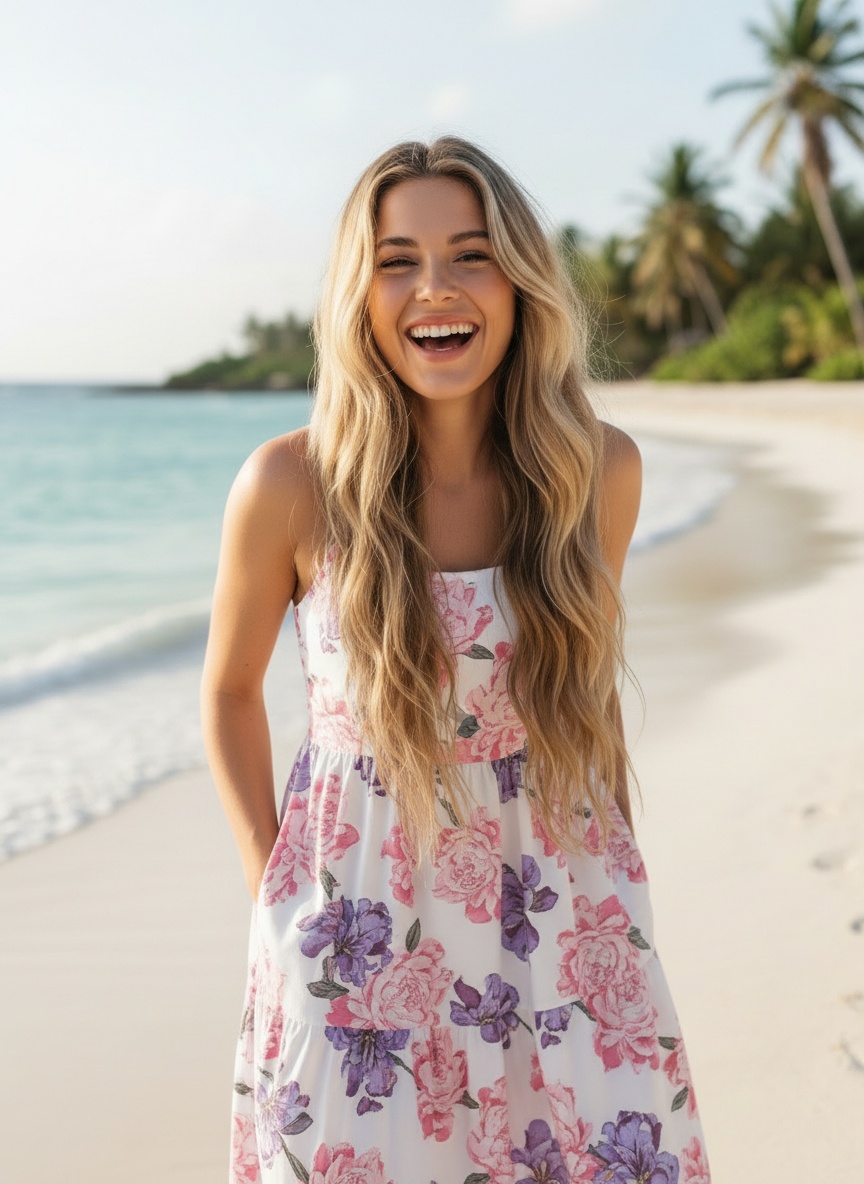 BeforeAfter
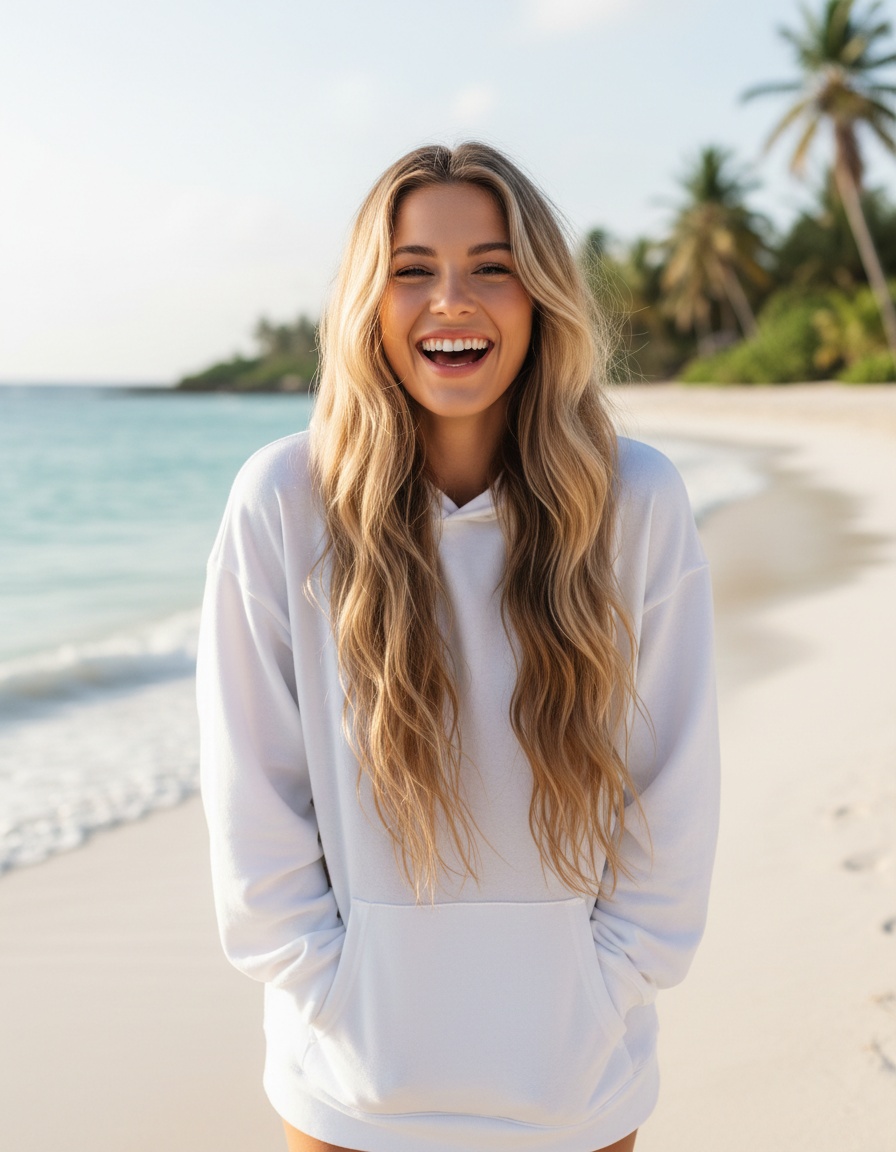
Portrait outfit swap
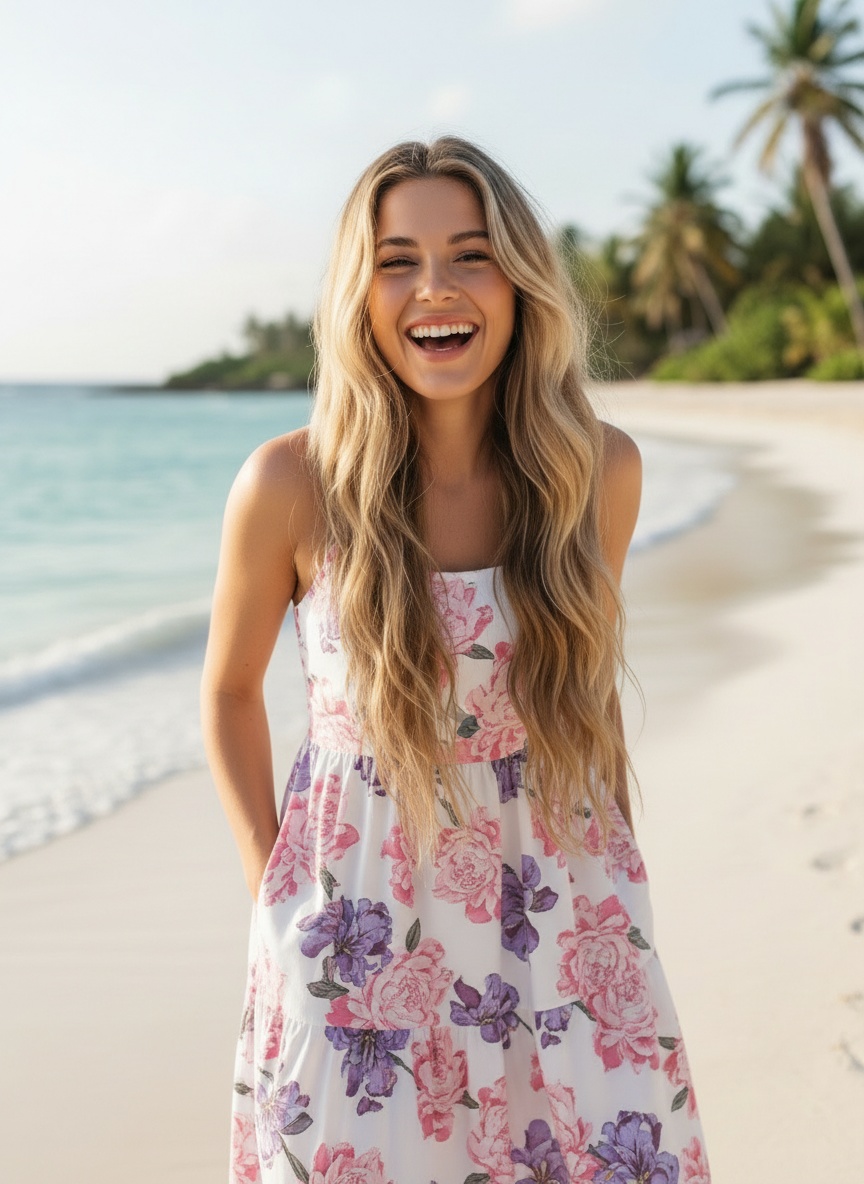 BeforeAfter
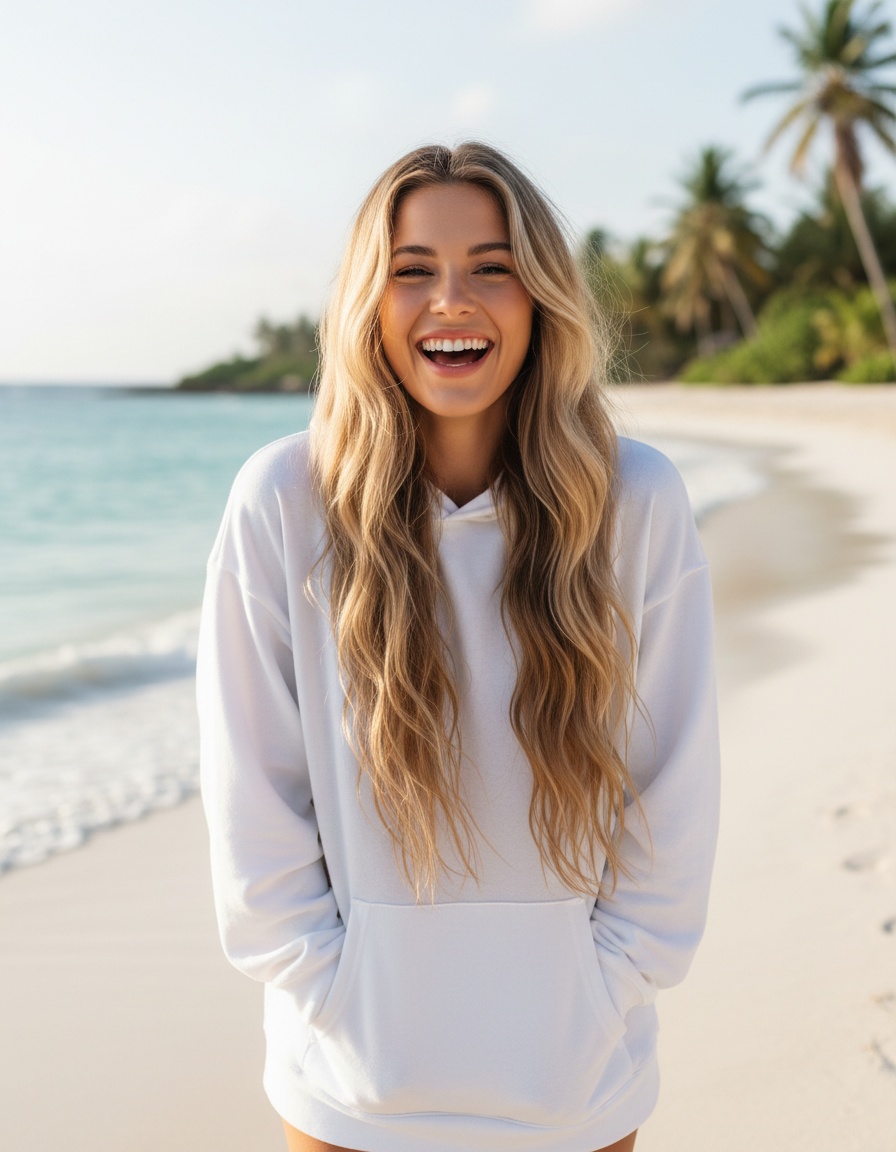
Floral dress try-on
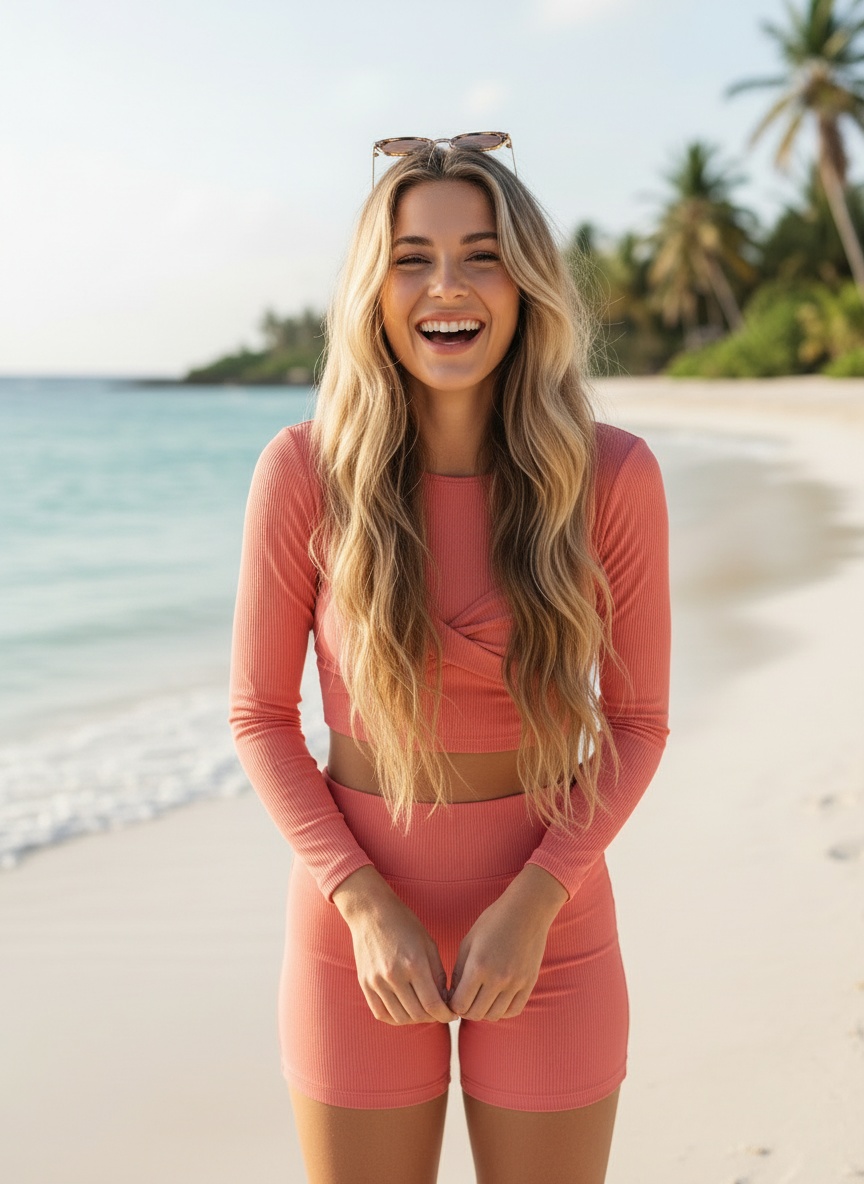 BeforeAfter
Swimwear try-on
- BeforeAfter
Prompt: black tuxedo
- BeforeAfter
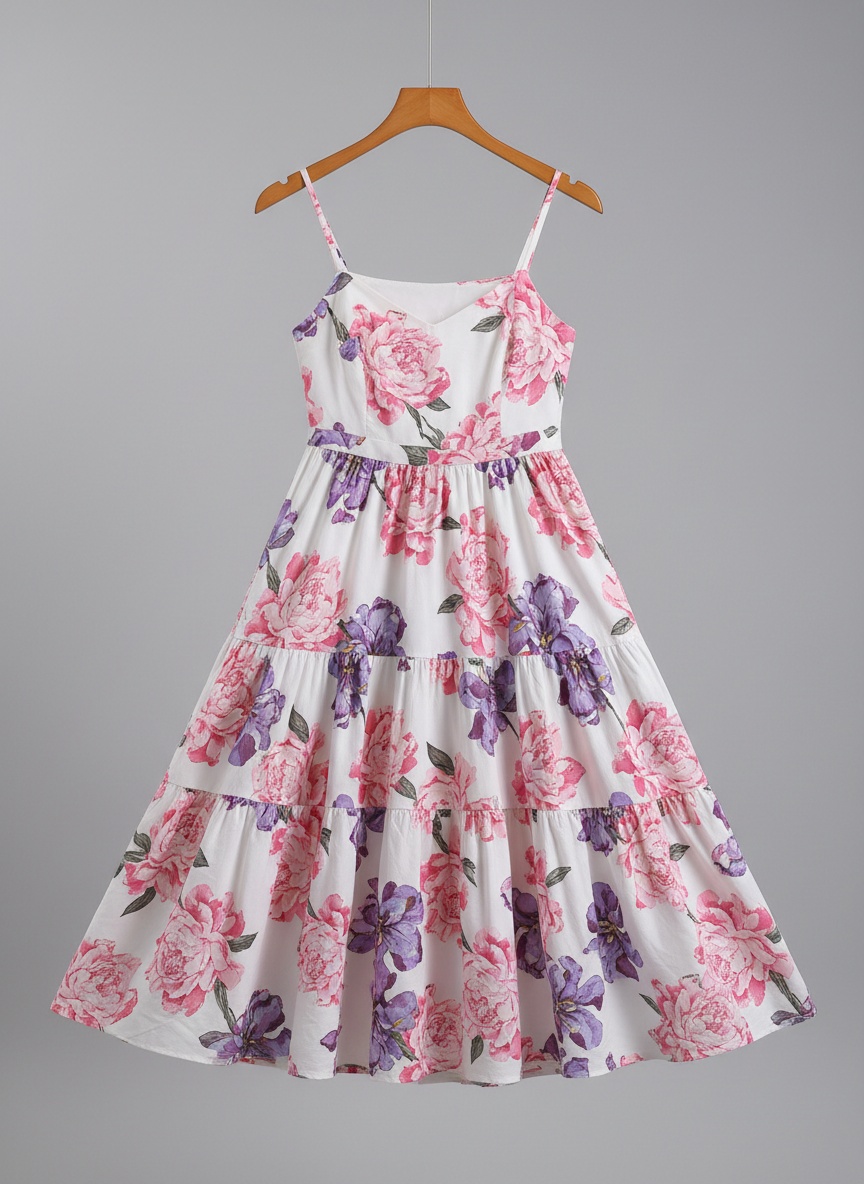
Clothing reference → result
- BeforeAfter
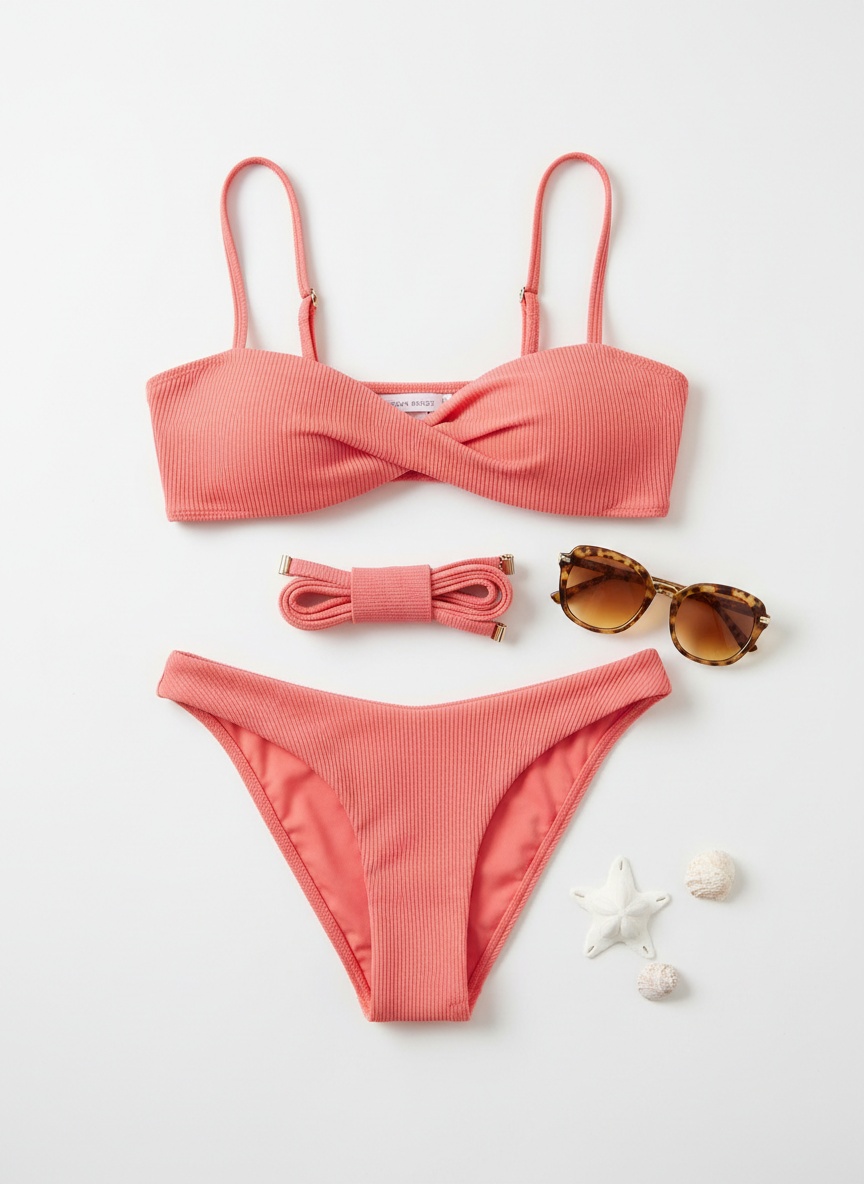
Swimwear reference → result
How to change clothes in a photo
Three steps from upload to downloadable try-on preview.
Upload a person photo
Use a clear full-or-half-body shot with face and torso visible. Drag, click, or paste a JPG, PNG, or WebP.
Add clothes or write a prompt
Upload a clothing photo for virtual try-on, or switch to Prompt and describe the outfit (for example “black tuxedo”).
Generate and compare
Run Generate, wait for the preview, then drag the before/after slider and download the look you like.
AI Clothes Changer — try-on photo or outfit prompt
Change clothes in a photo online: upload a person plus a clothing photo for virtual try-on, or describe the outfit in a prompt. Preview in your browser before you shop or post.
Clothing-photo mode maps a garment (flat lay, mannequin, or product shot) onto a clear person photo while keeping pose and face stable.
Prompt mode accepts natural language (“red cocktail dress”) when you do not have a clothing reference. Need a new cut or color instead? Open AI Hairstyle Changer or AI Hair Color Changer.
Credits apply per generation. Use JPG, PNG, or WebP up to 30 MB. Phone photos work when the subject — and the garment, if you upload one — are clear.
More AI Image tools
Free browser tools for editing portraits, generating characters, and trying hair looks.
AI Image Editor
Edit photos with text — remove objects, change outfits, and refine portraits online.
AI Character Generator
Generate character art from prompts — portrait, chibi, cartoon, and stylized looks.
AI Hairstyle Changer
Try hairstyles on your photo — preset cuts for women and men, or describe a look.
AI Clothes Changer
Virtual try-on from a clothing photo, or describe the outfit in a prompt.
AI Hair Color Changer
Change hair color in portraits — presets, custom prompts, or a color picker.
Old Photo Restoration
Restore old photos online — reduce scratches, sharpen faces, and fix fading before you share or animate a portrait.
Need a flyer or layout from scratch? Try AI Poster Generator, AI Menu Generator, or AI Infographic Generator.
Next step: add their voice
Clean up a portrait here, then use the same photo on Vocalove’s voice and talking-photo tools — one browser account.
Talking Photo Videos
Turn a still portrait into a short clip that speaks your script — clone or preset voices.
Tribute & Memorial Video
Honor someone with a talking portrait and message in a voice that sounds like them.
Voice Cloning Software
Compare browser, cloud, and desktop cloning before you pick a workflow.
AI Clothes Changer — FAQ
- What do I need for AI Clothes Changer?
- A clear person photo (face and torso visible). Then either upload a clothing photo for virtual try-on, or switch to Prompt mode and describe the outfit in words.
- Will changing clothes change my face?
- Both modes aim to keep face, hair, and pose stable while swapping the outfit. Results still vary with photo quality — compare before you share.
- What kind of clothing photo works best?
- A clean garment shot on a plain background or mannequin works best. Busy store photos, folded piles, or multiple items in one frame are harder to map accurately.
- Is AI Clothes Changer free?
- You can upload and preview in the browser; each generation spends credits. New accounts include welcome credits to try a few looks.
- Can I describe an outfit instead of uploading clothes?
- Yes — open Prompt mode and type the look you want (for example “red cocktail dress with thin straps”). Use Clothing photo mode when you have a garment reference.
- Which mode should I choose?
- Use Clothing photo when you have a flat lay, mannequin, or product shot to try on. Use Prompt when you only know the style in words and do not have a clothing image.
- What file types can I upload?
- JPG, PNG, and WebP up to 30 MB for person and clothing photos. Phone photos work when the subject and garment are clear.
- How long does a clothes change take?
- Most previews complete in under a minute. Stay on the page until the after image appears in the panel.
- Can I use the result in a memorial or talking photo video?
- Download the still you prefer, then upload it to Talking Photo Videos or Tribute & Memorial Video with your script and voice.
- Why does my outfit preview look wrong?
- Try a sharper person photo with more torso in frame. For clothing mode, use a cleaner single-garment image; for prompt mode, shorten the description. Extreme angles and heavy filters often confuse the model.